Customize Your AI Agent
The Customize Agent page has three tabs: General, Helpful Links, and Contact Us. There’s also an Embed dialog and a Share button for getting your agent out there.
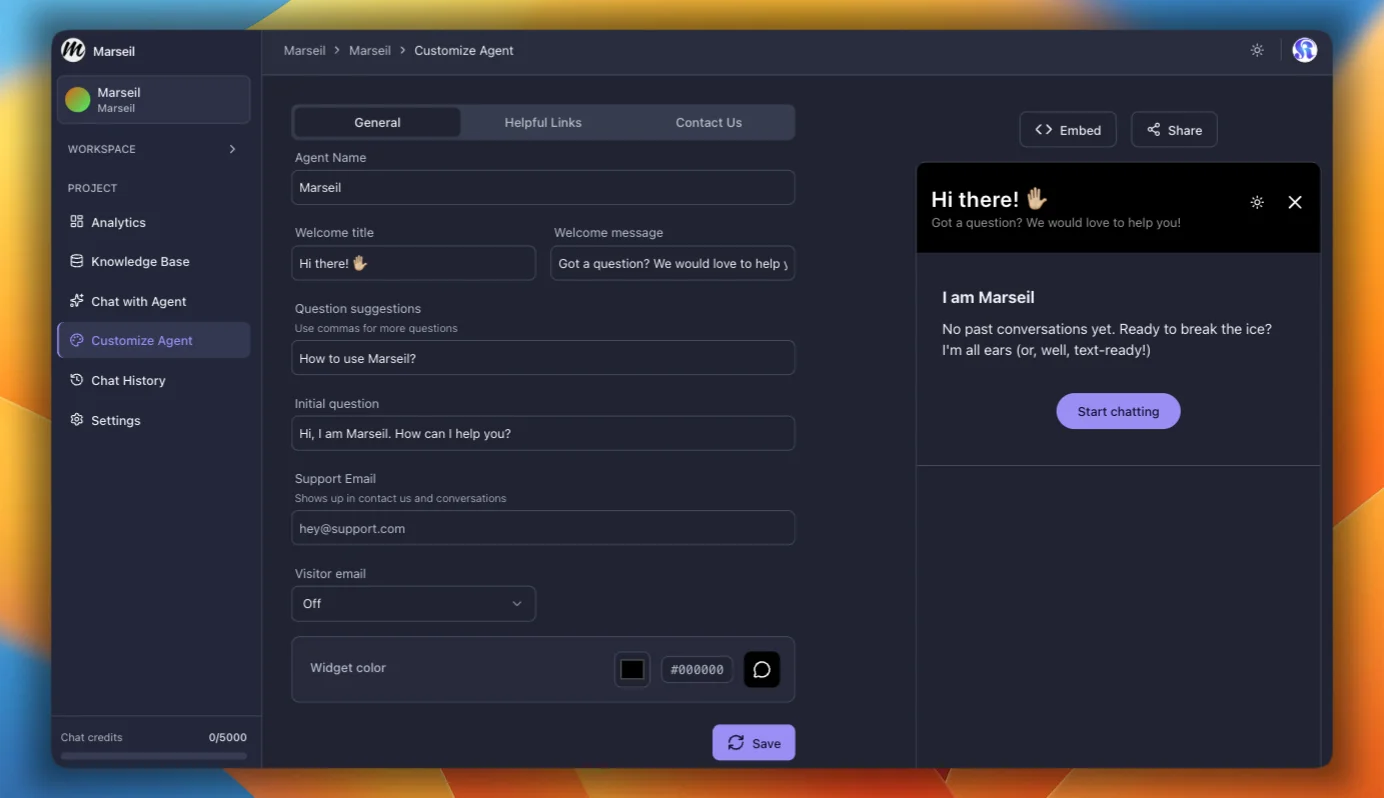
General Tab
This is where you set up the agent’s identity and how the widget looks.
- Agent name: shows at the top of the chat widget and as the link preview title when sharing.
- Welcome title: the heading on the widget home screen before anyone sends a message. Default is “Hi there! ✋🏼”.
- Welcome message: subtitle below the welcome title.
- Question suggestions: comma-separated questions shown as quick-reply chips. One or two is enough.
- Initial question: the first message the agent sends on its own when the chat opens.
- Support email: shows up in the Contact Us section and alongside conversations. Each answer also gets an @ icon and an email icon. Click @ to copy the email, tap the email icon on mobile to open the mail app. You can add multiple emails separated by commas.
- Visitor email collection: decide whether the widget asks visitors for their email. Off by default. You can set it to Optional or Required.
- Email field placeholder: custom placeholder text for the email input. Only shows when visitor email collection is set to Optional or Required.
- Widget color: pick a brand color for the widget header. Text color adjusts automatically for contrast.
Each answer also shows thumbs up and thumbs down icons for feedback. You can see this feedback in Chat History.
Helpful Links Tab
Add up to 4 links that show up on the widget home screen. Each link has a label and a URL. Hit Add to create one or Remove to delete it.
Contact Us Tab
Add URLs for your social and contact channels. The widget supports: Website, Facebook, X (formerly Twitter), LinkedIn, GitHub, Discord, WhatsApp, Telegram, and Instagram. Only the ones you fill in will show up.
Embed and Share
- Embed: opens a dialog with the script tag and iframe code. Learn more.
- Share: copies the public chat link. Send it to anyone who needs direct access to your agent. You need the Public chat link toggle turned on in Settings.