Project Settings
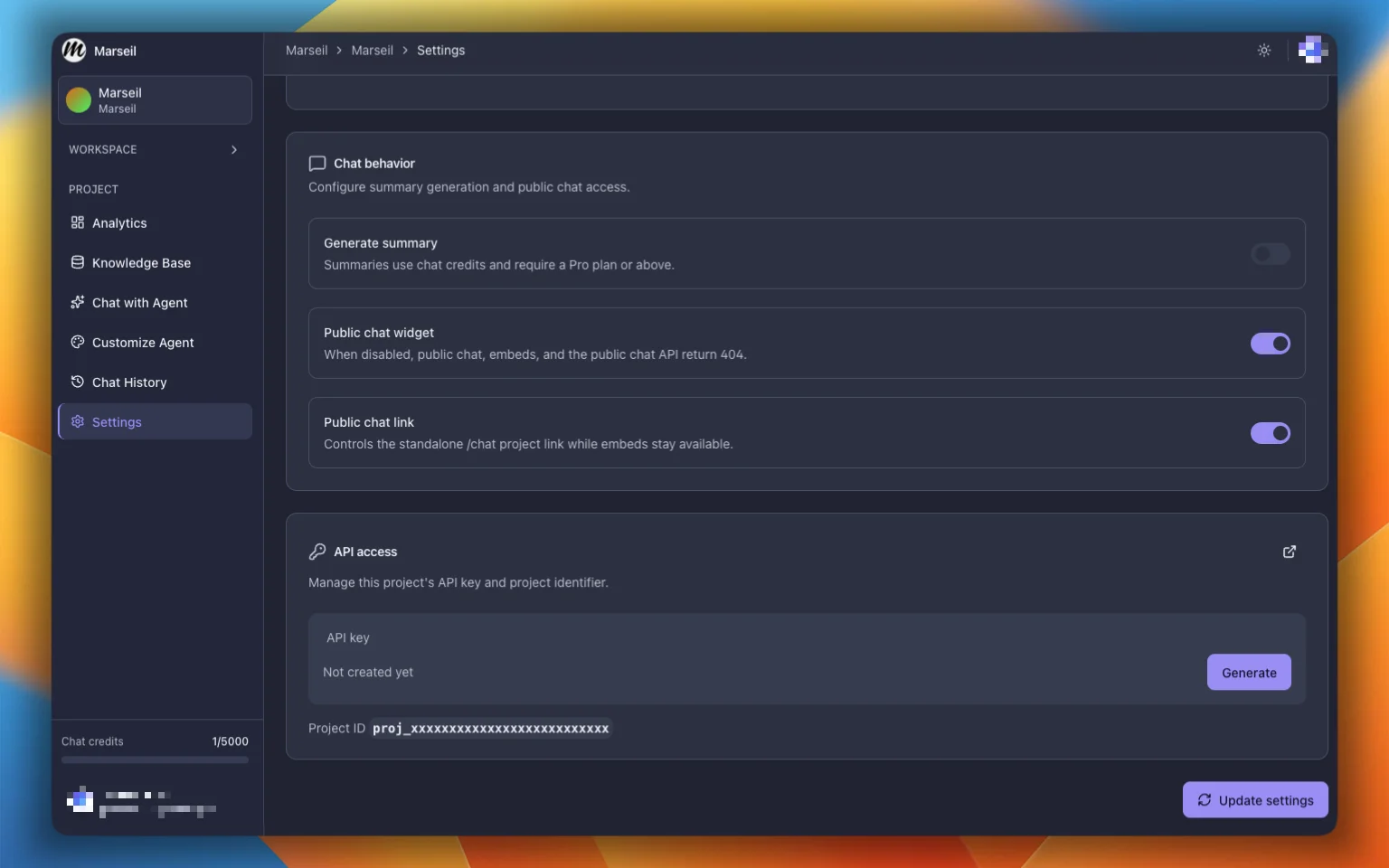
The Settings page has four sections: Integrations, Agent identity, Chat behavior, and API access. One button at the bottom saves everything.
Integrations
Connect or disconnect Slack. Click Add to Slack to start. Once connected, a badge appears with a dropdown to disconnect. Learn more about Slack.
Agent Identity
- Project name: used across the dashboard and widget.
- Project description: also used for SEO when sharing links.
- System prompt: write your own system instruction for the agent. Click Reset to go back to the default. Be careful with this one; a bad prompt can make the agent worse.
Chat Behavior
Three toggles:
- Generate Summary: turns on automated post-conversation summaries. Professional and Ultimate plans only. Each summary costs one credit.
- Public chat widget: when this is on, people can reach your agent through the embed widget, the public API, or the standalone chat page. Turn it off and all public access stops.
- Public chat link: turns on the shareable chat page at
/chat/<project-id>. Needs the public chat widget to be on first.
API Access
- API Key: generate or regenerate your key (looks like
sk_...). You only see it once after generating, so save it somewhere safe. Pass it asAuthorization: Bearer <key>for REST API calls. - Project ID: shown here for reference.
You need a Professional or Ultimate plan for API access.