Embed as iFrame
If you prefer a standalone agent as an iframe instead of the floating widget, use this snippet. Requires your agent to be public (toggled in Settings → Chat behavior).
Get your project-id from Settings.
Agent Widget
<div style="display: flex; justify-content: center;">
  <iframe
    src="https://app.marseil.ai/embed/chat/<your_project_id>"
    style="border: none; box-shadow: rgba(0, 0, 0, 0.1) 0px 4px 12px;"
    width="450"
    height="700">
  </iframe>
</div>
Requires Public chat widget to be on.
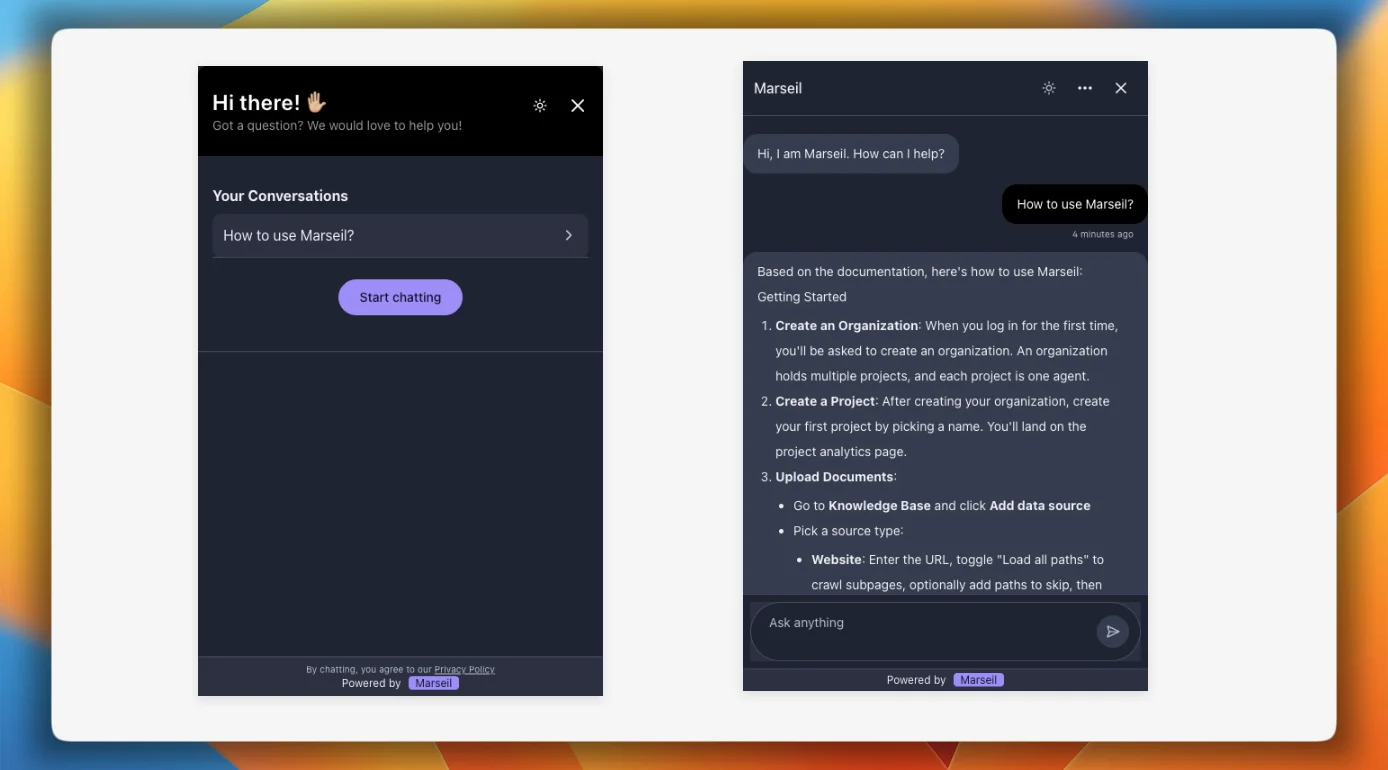
Customization
The iframe is a standard HTML element, so you control everything through CSS:
Size — set width and height to whatever fits your layout. The widget inside is responsive and adapts.
Border and shadow — remove box-shadow for a flat look, or adjust them to match your design. Don’t use border-radius — it creates invisible areas that block clicks inside the widget.
Positioning — the example above centers it with flexbox. You can also pin it to a sidebar, make it full-width, or absolutely position it.
Full-page — for a full-page chat experience, use /chat/<your_project_id> instead and set width and height to 100%.
Requires both Public chat widget and Public chat link to be on.
Troubleshooting
Iframe not loading: Open DevTools → Console. Check for X-Frame-Options errors. Make sure your project has the right public toggle enabled in Settings.
Verify the project ID: In the browser console, run:
document.querySelector("iframe")?.src
The URL should contain your project ID (e.g. /embed/chat/proj_abc123). If it’s missing or wrong, double-check the src attribute on your iframe.